
You can use AI to create Hawaiian shirt patterns by generating a repeating tropical background, checking how the artwork connects, and arranging it on a shirt template. For a personalized face-print design, add the original photo as a separate layer so you can control its appearance and placement.
This tutorial focuses on the digital artwork workflow: writing an AI prompt, checking a repeat tile, adding a face layer, and separating mockup visuals from the file handed to a printer.
This guide uses one example: a navy tropical print with coral flowers, green leaves, and a personal face motif. The illustrations were created with ImageGen and a fictional face. They show the design stages; they are not Midjourney screenshots or printed samples. The Midjourney instructions below follow its official documentation.
Understand What You’re Creating
In clothing design, “pattern” can mean two things: the artwork printed on fabric, or the sewing pieces used to cut and assemble a garment. This guide covers fabric prints, not sewing patterns.
A tile is one section of artwork repeated across a larger area. In a seamless pattern, its edges connect without an unwanted line or gap. That digital connection is separate from matching the print across a shirt’s buttons, pocket, or seams. Garment layout and construction need their own checks.
What You’ll Need
- An image generator with a repeating-pattern feature. The documented workflow here uses Midjourney’s tile parameter.
- An image editor that supports layers, photo cutouts, and precise positioning.
- A clear photo you have permission to use.
- A shirt mockup for checking the overall appearance.
- A place to save the original tile, prompt, photo layer, and edited artwork separately.
Check access requirements for your chosen tools. Keep an editable copy so you can adjust the artwork later.
Step 1: Define Your AI Pattern Brief
Turn the design idea into instructions the generator can follow. Specify the background, motif types, palette, illustration style, and empty space needed for the later photo layer.
| Design element | Example choice |
|---|---|
| Background | Deep navy |
| Main motifs | Hibiscus flowers and palm leaves |
| Accent colors | Coral and sage green |
| Illustration style | Flat botanical artwork |
| Personal detail | A smiling face motif repeated through the print |
| Spacing | Enough open background to keep the portraits recognizable |
These are starting choices, not rules. For your first attempt, keep the subject simple. Dense flowers, several faces, small lettering, and different illustration styles make the composition harder to judge.
Step 2: Generate the Background with Midjourney’s Tile Parameter
Create the background without faces first so you can adjust it independently from the photo.
In Midjourney, --tile generates a single tile intended to repeat. Inspect that output in a repeated view. Its documentation cautions that upscaling can disrupt the repeat, so recheck an enlarged version. See the official Midjourney tile guide.
Try this starting prompt:
Seamless repeating tropical fabric pattern for a Hawaiian shirt, hibiscus flowers and palm leaves, deep navy background with muted coral flowers and sage green leaves, flat botanical illustration, medium-sized motifs, open spacing for adding personal photo portraits later, even visual balance, no people, no faces, no lettering, no logos, flat artwork only, no shirt mockup --tile

Base artwork generated with ImageGen for this guide. It is a draft illustration, not a verified Midjourney output or production-ready repeat tile.
Look for sensible shapes, colors you like, and space for the portraits. If the pattern feels crowded, change one part of the prompt: fewer flowers, smaller leaf clusters, or wider spacing. Changing one variable at a time makes the effect easier to judge.
Step 3: Run a Three-by-Three AI Tile Check
Place nine identical copies of the tile in a three-by-three grid with no gaps. Keep every copy the same size, without rotating or flipping individual tiles.

Nine copies of the actual base tile, arranged without redrawing the artwork. Use this view to inspect spacing and boundary changes.
Look for unwanted lines, abruptly cut motifs, repeated empty patches, and dense clusters that form stripes. A pattern can connect at its edges yet still create an obvious grid.
In this example, the botanical elements sit inside the tile boundaries. That avoids cutting leaves and flowers at the edges, but it makes regular gaps easier to notice. A comparison of the source image’s opposite edges also found small color differences. The example therefore demonstrates repeat inspection; it is not an approved seamless production file.
Keep the single tile for editing and the larger preview for judging the composition. Recheck both after any changes.
Step 4: Keep Face Identity Separate from AI Generation
Use a clear source photo and keep its cutout on a separate layer in your editor. Inspect the hair, ears, and chin after removing the background.
The AI-specific risk is identity drift: regenerating a portrait can change the person’s features. When recognition matters, place the original cutout over the generated background and keep it editable. If you intentionally generate an illustrated interpretation, review the likeness with the person whose photo you are using.
Step 5: Add the Face Layer and Retest the Tile
Place the portrait above the tropical background and try different sizes. Use the repeated view to judge frequency: a face that looks small in one tile may appear many times across a shirt.
For a first attempt, keep each face inside the tile boundary, leave room around large flowers, use consistent portrait sizes, and preserve the background tile’s original dimensions. If a portrait crosses an edge, create an accurately positioned counterpart on the opposite side.

Illustration of the personalization stage. The portraits in this example were AI-composited; this is not evidence that a real customer’s original photo was preserved unchanged. For identity-sensitive work, use the original photo layer in your editor.
Rebuild the repeated preview. Check for rigid rows, collisions with flowers, and portraits that appear too frequently. Keep an editable version rather than replacing the original photo and base artwork with one flattened file.
Step 6: Compare the AI Shirt Mockup with Your Source Artwork
Use a mockup to explore how the pattern might look on a shirt, then compare it with the actual tile. Generative mockups can reinterpret the artwork while creating folds and garment details. A convincing shirt image can therefore contain different faces, spacing, or motifs from the supplied file.

Illustrative digital mockup, not a photograph of a manufactured shirt.
Check the render against the source rather than approving it on appearance alone:
| Source feature | What to check in the AI mockup |
|---|---|
| Face identity | Changed eyes, hair, expressions, or facial proportions |
| Motif artwork | Invented flowers, missing leaves, or altered shapes |
| Repeat scale | Portraits that become much larger or more frequent |
| Color relationships | Navy, coral, and sage shifting relative to each other |
| Garment construction | Added pockets or seams that differ from the real template |
Use the actual tile and production template for placement decisions. Keep the AI mockup as a visualization, separate from the artwork approved for manufacturing.
Step 7: Package the AI Artwork for Handoff
Save the original generated tile, the editable file with the face layer, a repeated preview, and the mockup as separate assets. Ask whether the recipient needs a tile or completed garment panels, then follow their dimensions, format, resolution, and color-profile requirements.
For raster artwork, pixel dimensions must support the intended physical size. For example, a 10-inch-wide tile at 200 pixels per inch needs 2,000 pixels across. This illustrates the calculation; it is not a universal production specification.
Changing a resolution label does not add missing photo detail. If you upscale a tile, rerun the edge check before handing it off. Do not use the rendered shirt image as the source fabric artwork.
Common AI Pattern Problems and What to Change
| Problem | What to try |
|---|---|
| Crowded artwork | Reduce the motif count or increase spacing |
| Faces are hard to recognize | Use a clearer photo, simplify nearby artwork, or enlarge the portrait |
| Portraits form rigid rows | Adjust their positions and inspect the larger repeat |
| Lines appear between tiles | Check edge alignment, export dimensions, and resizing |
| A generated mockup changes the face | Use the original photo and a mockup that preserves supplied artwork |
| Faces are cut by garment features | Adjust placement in the production template where available |
Save the prompt, original tile, portrait cutout, and edited version. Those files make later revisions easier.
Use the Face Collection as a Starting Point
You can explore face-print layouts without building a complete fabric pattern yourself.
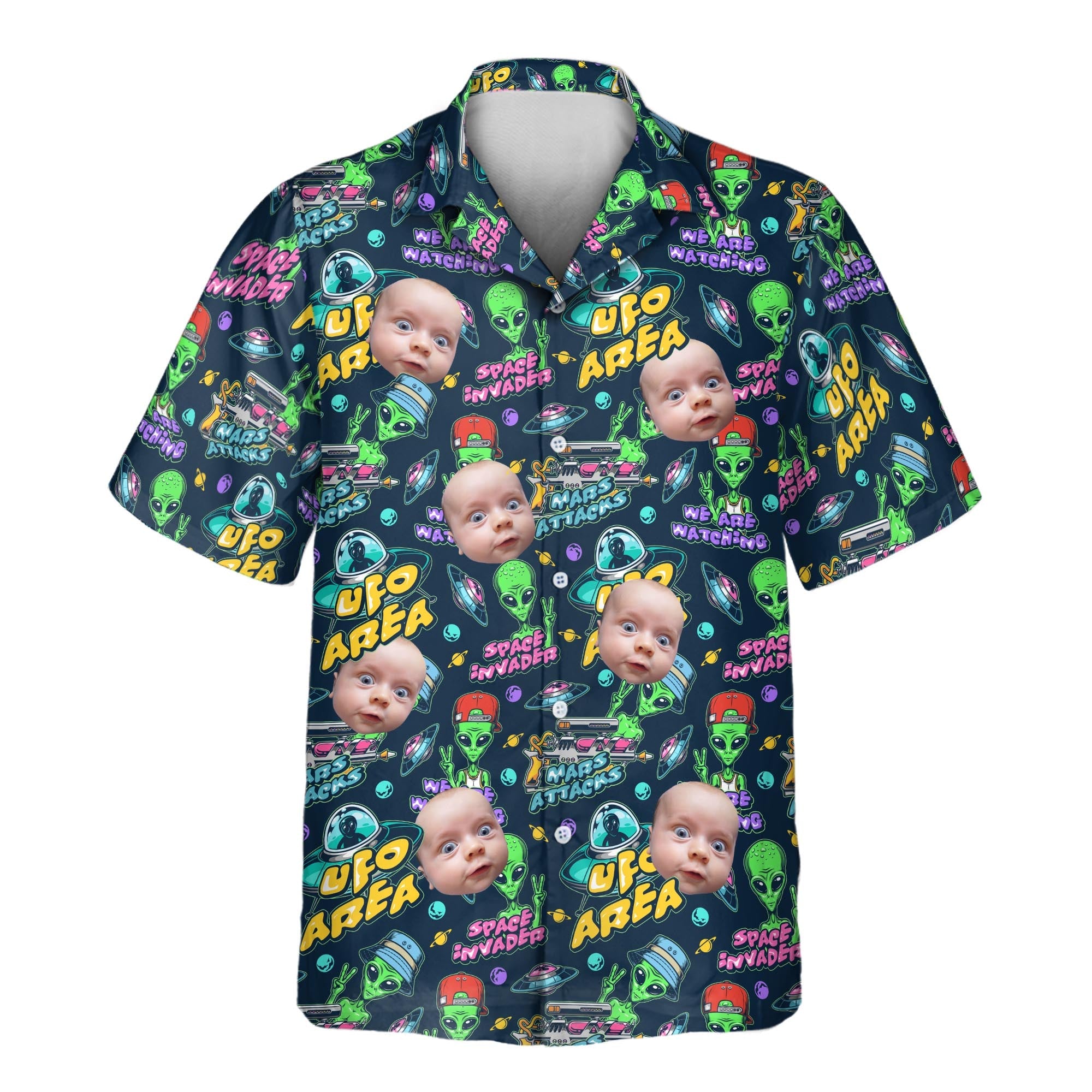
The Hawaiian shirts with faces collection at Custom Aloha Shirts shows how personal photos can become part of a tropical design. Notice the relationship between face size, surrounding artwork, and background color as you browse.
Creating a pattern from scratch and personalizing an existing product are different routes. Review the selected product’s options before ordering. A photo-upload option does not necessarily mean that the same product accepts an entire custom fabric pattern.
Check Your Design Before Moving Forward
Before sending artwork for production, check that the repeat connects, portraits remain recognizable, scale works on the garment, important details have been reviewed against the production layout, and the file meets the printer’s requirements. Confirm permission to use the photos and other assets included.
AI can help you explore the background artwork. Your decisions about the original photo, repeat, scale, and placement turn that starting point into a considered face-print design.
For more personalized Hawaiian shirt inspiration, explore Custom Aloha Shirts.
Tags:
Related articles
-
Sep 25 2026
15 Best Hawaiian Shirt Brands to Know in 2026
-
Jul 25 2026